AI-generated FPV videos become viral on social media. These clips feel like they were filmed by an expert FPV drone pilot, but many of them are actually created with AI video tools.
With Seedance 2.0, creators can turn a static image, a drawn camera path, and a clear prompt into an immersive FPV video without flying a real drone.
What is an AI FPV Video?
An AI FPV video is a first-person flight-style video generated by AI, usually designed to look like a fast drone shot or immersive camera journey.
FPV stands for “first-person view.” In traditional video production, FPV footage is usually filmed with a drone that moves quickly through a real environment.
AI FPV video brings this effect into generative video creation. Instead of using a real drone, creators can use an AI video generator to simulate a drone-style camera path. The result can look like a cinematic flythrough.
The biggest advantage is accessibility.
You do not need a drone, a pilot, a location permit, perfect weather or expensive filming equipment.
You only need a strong visual idea, a reference image, and a prompt that describes the camera movement.
For social media creators, this means faster content production. For AI movie creators, it means more freedom to design impossible shots.
Why Choose Seedance 2.0 for AI FPV Video Generation?
Seedance 2.0 is a strong choice for AI FPV video generation because it gives creators more control over camera movement, visual references and image-to-video creation.
For FPV videos, motion is everything. A beautiful scene is not enough if the camera cannot fly smoothly, follow the route, or create a real sense of speed. Seedance 2.0 fits this workflow well because it can turn a static image into a dynamic FPV video and use visual guidance, such as a red-line camera path, to shape the movement.
Its main advantages include:
Better camera movement control: useful for flythroughs, dives, orbits, vertical climbs, and one-take FPV shots.
Image-to-video flexibility: creators can start from city images, fantasy maps, product scenes, offices, or character layouts.
Multimodal reference support: scene images, character references, and route images can help guide the final result.
Social media potential: short, fast, cinematic FPV clips are ideal for TikTok, Reels, Shorts, and brand videos.
In short, Seedance 2.0 helps creators move beyond random AI video generation. It makes FPV video creation more visual, controllable and practical.
How to Use Seedance 2.0 to Generate FPV Videos?
Seedance 2.0 can generate FPV videos by reading a drawn path on an image and using that path as a camera movement reference.
A popular method is the red-line camera path workflow. The creator draws a red line on a base image to show where the camera should fly. The red line can move through buildings, around characters, across a fantasy map, or toward a final subject.
The red line is only a guide. In most cases, it should not appear in the final video.
A simple workflow looks like this:
Step 1: Choose a Clear Base Image
Start with a clear image that has enough space and depth for camera movement.
The image should include visible foreground, middle ground, and background. This helps Seedance 2.0 understand the scene structure and create a stronger sense of FPV motion.
Avoid overly flat, crowded, or visually confusing images.
Step 2: Draw the Camera Path
Draw a red line on the image to define the FPV route.
Keep the path clean and easy to read. The line can show where the camera starts, which areas it passes through, and where it ends.
Useful tips:
Make the red line slightly thick.
Keep turns clear and natural.
Avoid too many sharp curves.
Match the path length with the video duration.
Keep the route simple for the first test.
A clean path usually gives Seedance 2.0 a better chance to create smooth and stable camera movement.
Step 3: Add a Direction Arrow
Add an arrow at the end of the red path to show the final camera direction.
This helps Seedance 2.0 understand how the shot should end. For example, the camera may rise upward, dive downward, orbit around a subject, or stop in front of the final focus point.
The arrow is especially useful when the ending movement matters to the visual impact.
Step 4: Write a Clear FPV Prompt
The prompt should explain how Seedance 2.0 should use the red line.
A strong prompt should include:
The red line is only a camera path reference.
The final video should remove the red line and arrow.
The camera should use first-person FPV movement.
The movement should be fast, smooth, stable, and cinematic.
The camera should follow the route without skipping steps.
The scene should stay visually consistent and avoid distortion.
This step is important because the prompt turns the red line from a simple mark into a controllable camera movement instruction.
Step 5: Generate, Review, and Refine
After generation, review whether the video follows the intended route.
Check these points:
Does the camera follow the red path?
Is the red line fully removed?
Is the motion smooth and stable?
Does the scene stay consistent?
Is the ending clear and visually strong?
Step 6: Add Post-Production
Post-production can make the FPV video feel more polished and social-media ready.
You can trim the best segment, adjust the speed, add music or sound effects, and apply basic color grading. If one route is too long, you can generate several shorter clips and edit them together.
This final step helps improve rhythm, atmosphere and overall viewing impact.
How Can You Create a City FPV Video with Seedance 2.0?
A city FPV video works best when the camera route includes clear landmarks, vertical movement, and a strong final reveal.
A good city FPV video should not only fly forward. It should create a visual journey.
Useful city FPV route ideas:
Start with a low-altitude flight over an open square.
Push forward toward a group of buildings.
Climb along the side of a tall tower.
Pass through a rooftop or bridge-like structure.
Dive between high-rise buildings.
Glide over water, roads, or city lights.
Rush toward a final landmark.
End with an upward orbit or wide city reveal.
Example prompt:
Please erase the red line, arrow, and all guide marks. The red line and arrow are only for camera movement reference and must not appear in the final video.
The camera should be presented in a first-person FPV view, ultra-fast, cinematic, and in one continuous take. It must strictly follow the red path in the image without deviating, skipping steps, or simplifying the route.
The camera starts from [starting point], passes through [node 1], then [node 2], then [node 3], and finally reaches [final subject] and completes [ending movement].
The video should be ultra-realistic, with smooth and stable motion, strong speed, and clear spatial continuity. Do not duplicate buildings, do not distort the scene, and do not include any text or watermark.
How Can You Create an AI Movie FPV Scene with Seedance 2.0?
An AI movie FPV scene works best when the camera path helps tell the story.
Step 1: Build the Scene and Draw the Route
Start with one wide fantasy scene, then draw a clear red path for the dragon’s flight.
For a Game of Thrones-style concept, the route can travel across the Iron Islands, Winterfell, the Wall, the Eyrie, Dragonstone, and King’s Landing, turning the shot into a cinematic journey through Westeros.
Keep in mind:
Use one strong master scene with clear landmarks.
Let the red path show the start, main turns, and ending point.
Keep the route simple and readable.
If the route is too long or too complex, the model may skip parts of it.
Step 2: Generate the Video
Use the main scene image, the route image, and a few extra references such as the rider, POV, and key landmarks.
Your prompt should clearly tell Seedance 2.0 to:
remove the red line and guide marks
start with a close dragon-back follow shot
transition into an immersive FPV POV
follow the route strictly
end with a dramatic final move
Prompt Example
“Erase the red line, arrow, and all guide marks. Use the red path only as the dragon flight route reference. Start with a close follow shot behind the rider, then smoothly transition into an immersive first-person POV. Fly across Westeros, passing the Iron Islands, Winterfell, the Wall, the Eyrie, Dragonstone, and King’s Landing. Keep the movement fast, seamless, cinematic, and in one continuous take. End with a high vertical climb and a dramatic dragon-fire finale.”
Step 3: Refine the Result
To improve the video:
match the route length to the video duration
shorten or simplify the path if needed
split the route into two clips if it feels too long
use basic post-production to enhance the cinematic feel
This workflow is ideal for AI movie trailers, fantasy storytelling, game world flythroughs and cinematic concept videos.
How Can You Create a Character-Based FPV Video for Social Media?
A character-based FPV video works best when the camera moves between people with a clear rhythm and short interactions.
Step 1: Build the Scene and Draw the Path
Start with a wide scene, such as a spacious luxury office, and place several AI characters inside it.
Then draw a red line on the image to guide the FPV camera path.
Key points:
Use one wide scene with enough space for movement.
Place the characters clearly along the route.
Draw a readable red path from one person to the next.
The red line is only for camera guidance and should be removed from the final video.
Step 2: Add Character References and Control the Pace
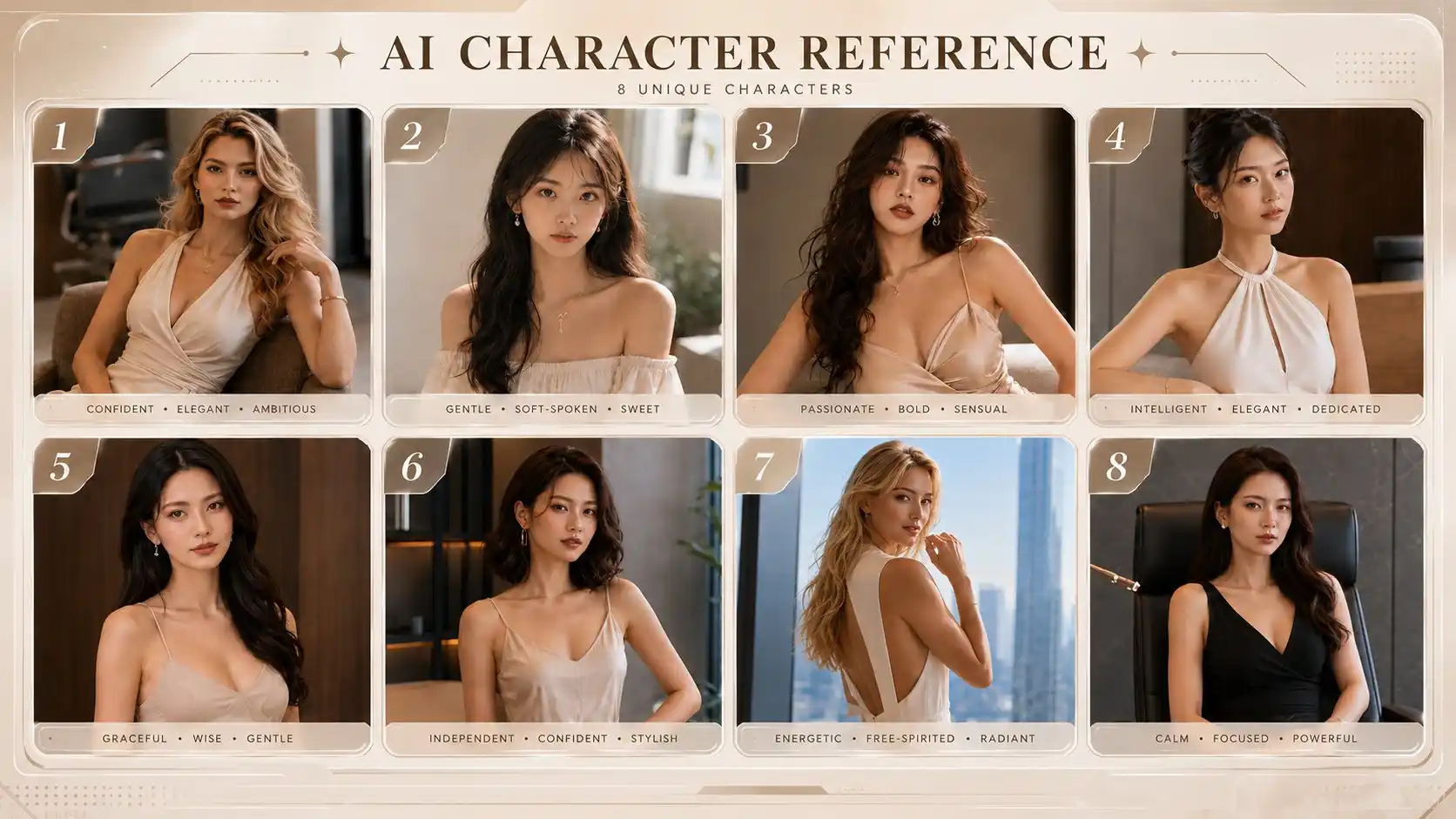
Wide shots may make faces too small, so character reference cards can help keep each person more stable.
They help maintain:
face
hairstyle
clothing
overall style
For social media, keep the dialogue short. A simple format like name + country is enough. The goal is quick interaction, not long speeches.
Step 3: Generate in Seedance 2.0
Use the scene image with the red path, plus the character reference cards.
A simple motion pattern works best:
fly in → close-up → greeting → pull back → next character
Because the video is short, each person should only say a little. If the dialogue is too long, the camera movement may feel rushed.
This format is useful for team introductions, virtual influencers, office promos, character showcases and social media videos.
Common Seedance FPV Video Issues and Fixes
Seedance FPV videos usually fail because the path is unclear, too long, or not supported by a precise prompt.
❌Red Line Is Not Removed
Sometimes the red line or arrow remains in the final video.
✅Fix:
Add: “Remove the red line, arrow, and all guide marks.”
Add: “Use the red path only as a camera movement reference.”
Provide a clean base image without the red line if needed.
❌Route Is Too Long
If the path is too long, the camera may skip steps or rush through the scene.
✅Fix:
Shorten the route.
Reduce sharp turns.
Split the path into two clips and edit them together.
❌Camera Movement Feels Unstable
The video may look shaky, jumpy, or visually messy.
✅Fix:
Use prompts like “smooth camera movement,” “stable FPV flight,” and “no sudden jump cuts.”
Make the red path simpler and more natural.
❌Scene Becomes Distorted
Buildings, faces, or objects may warp during fast movement.
✅Fix:
Add: “keep architecture consistent.”
Add: “no distorted buildings, no duplicated structures, no warped faces.”
Avoid overly crowded or complex routes.
Creative FPV Video Ideas for Seedance 2.0
Seedance 2.0 can create more than standard AI drone shots. It can also turn FPV camera movement into stylized social media content, fantasy scenes and cinematic experiments.
Red Line as a Special Effect
Usually, the red line should be removed. But in some creative videos, keeping it can look cool.
It can work as:
a glowing energy trail
a racing path
a cyberpunk motion line
a magic route
a sci-fi interface effect
Use this only when the red line supports the style. For clean city, real estate, or brand videos, it is usually better to remove it.
Parkour Between Buildings
Create a fast FPV shot that feels like the camera is jumping across rooftops, diving between towers, and sliding along glass walls.
This works well for:
action clips
game trailers
urban fantasy videos
viral social media content
Little Wizard Flying Scene
Turn the FPV camera into the viewpoint of a little wizard flying through a family home.
The journey can begin inside a wardrobe, then fly out into the living room, where the little wizard briefly encounters a pet cat. After that, the camera rushes into the child’s bedroom, weaves through the space, then playfully passes through the refrigerator and finishes in the bathroom.
This is ideal for:
fantasy storytelling
AI movie concepts
children’s content
magical short videos
These ideas show that Seedance 2.0 FPV videos are not limited to drone-style city shots. They can become cinematic, magical, playful or highly stylized visual stories.
Seedance 2.0 makes FPV video creation easier, faster and more imaginative without a real drone.
If you want to create viral FPV videos for social media, start simple.
Choose one image, draw one clean path, describe the camera movement clearly and generate your first Seedance 2.0 FPV video. Then refine the route, improve the prompt, add music and build more ambitious shots.
Try Seedance 2.0 for free and see how far your imagination can fly!
Recomended Seedance FPV Camera Movement Prompts
Seedance 2.0 works better when the prompt clearly describes the camera style, movement direction, speed, route, and visual limits.
Prompt Goal | Useful Prompt |
FPV style | first-person FPV view, immersive FPV shot, AI drone shot, cinematic FPV video |
Speed and energy | high-speed flight, ultra-fast movement, dynamic acceleration, speed ramp |
Smooth movement | smooth camera movement, stable flight, seamless motion, fluid camera path |
One-take effect | one continuous take, one-shot video, no cuts, seamless flythrough |
Direction control | fly forward, turn left, turn right, rise upward, dive downward, push in, pull back |
City flythrough | fly between buildings, climb along the tower, dive between skyscrapers, glide over the skyline |
Orbit movement | orbit around the subject, circle the landmark, spiral upward, rotate around the tower |
Character movement | fly toward the character, stop for a close-up, pull back, move to the next person |